
Spatial Computing at Home: The Dadnology Guide to Mac Virtual Display
1. Introduction: The Death of the Clunky Desk
For years, the "ultimate" home office was defined by how much glass and metal you could cram onto a desk. We’ve all seen them—those sprawling triple-monitor setups that require two desks just to fit the stands. But as a modern professional, you know that physical real estate is expensive, and your desk shouldn't look like a bowl of spaghetti when the kids are trying to do homework next to you.
The Mac Mini M4 changed the game by being tiny, but the Apple Vision Pro changes the game by making the screen itself infinite. At Dadnology, we don’t view this as just a "headset" for games; we see it as the ultimate spatial accessory for your Mac. The goal is a strategic shift from fixed, physical monitors to a flexible, virtual workspace. Through a feature called Mac Virtual Display (MVD), the Vision Pro acts as a high-resolution bridge, "teleporting" your Mac’s screen into a 3D environment. It’s about regaining focus and finally reclaiming your desk from the clutter.
Apple Mac mini (2024, M4)
The value king. 16GB RAM is now standard, making this $599 machine capable of handling real professional photo work.

2. Visual Horizons: Breaking Down the Three Display Modes
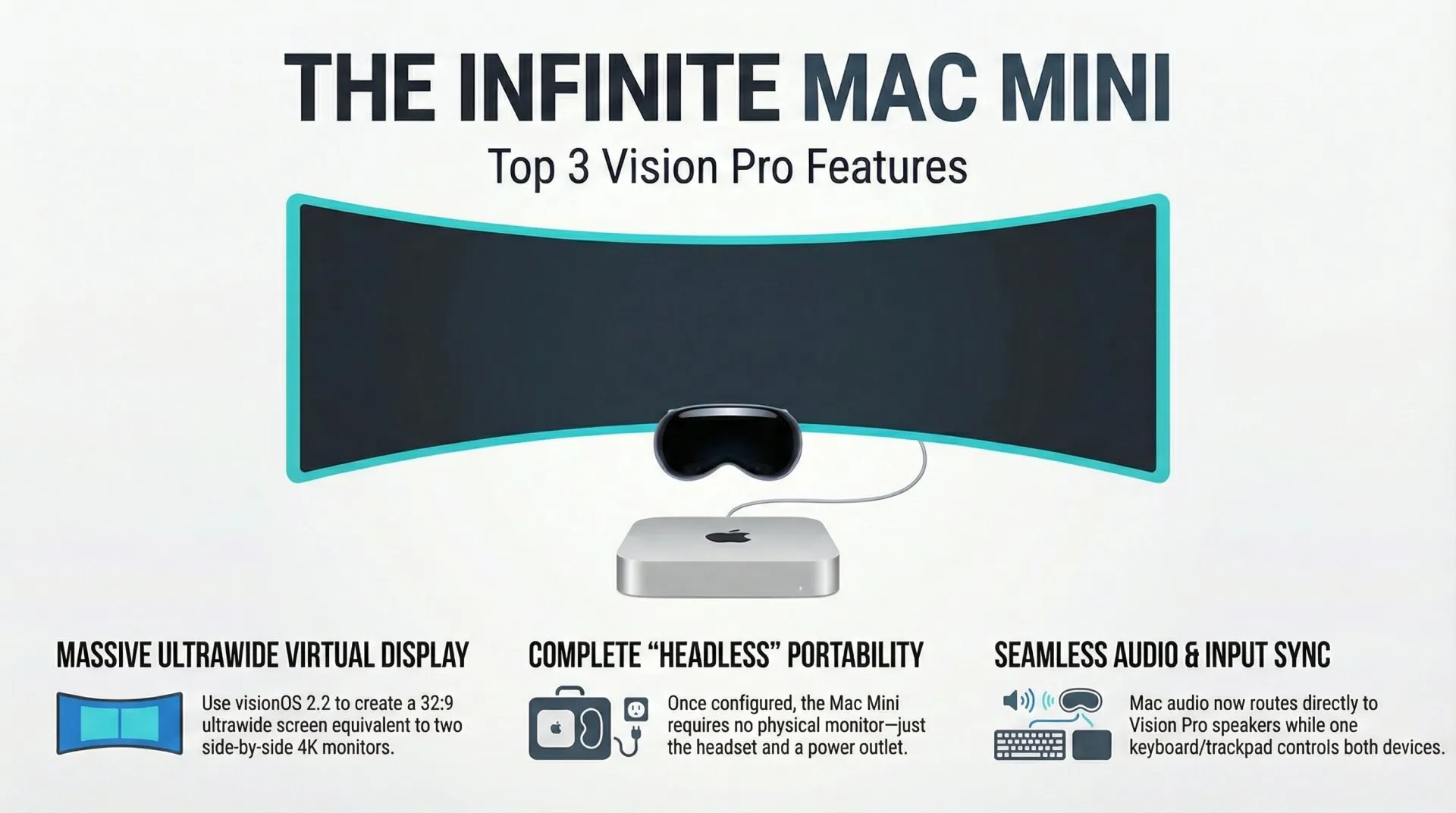
While the initial version of MVD was a neat trick, the visionOS 2.2 update transformed it into a "killer app." It moved beyond a simple mirror of your laptop screen to simulate massive ultrawide setups that would normally occupy half a room.
Perhaps the best "Dad" win in this update is the new audio routing: you can now route audio directly from the Mac to the Vision Pro’s spatial speakers or your AirPods Pro, letting you stay fully immersed in your work without disturbing the rest of the household.
| Mode | Aspect Ratio | Equivalent Real-World Setup | Max Resolution |
|---|---|---|---|
| Standard | 16:9 | A high-end 5K Studio Display | Up to 5K (5120 x 2880) |
| Wide | 21:9 | A premium ultrawide productivity monitor | Up to 6720 x 2880 |
| Ultrawide | 32:9 | Two 4K monitors side-by-side | Up to 10240 x 2880 |
Impact Analysis
For creative professionals, these modes solve the problem of "visual clutter." In Adobe Lightroom, the Ultrawide mode is a revelation. You can pin your library grid to the far left and keep a massive editing module on the right, eliminating the need to constantly scroll or toggle panels. It turns your workspace into a sci-fi command center where your primary task is front and center, while native Vision Pro apps like Slack float in your periphery.
3. The Tactile Bridge: Real-World Keyboards in a Virtual World
A common "beginner’s fear" is the feeling of being "blind" to the real world—worrying you’ll knock over your coffee or lose your place on the keyboard. Apple solved this by making the Vision Pro a "passthrough" device first.
The device is designed to work with the hardware you already own. You can see and use your Magic Keyboard and Magic Trackpad exactly as you always have. The advanced sensors ensure your hands and peripherals remain crystal clear even when you are fully immersed in a virtual "Environment" like Mount Hood. While visionOS gestures are great for casual browsing, nothing beats the tactile speed of physical keyboard shortcuts for professional apps like Photoshop.
4. The "So What?" Layer: Why Go Virtual?
Strategic lifestyle and ergonomic benefits are the real reasons to make this shift:
- The Triple-Monitor Killer: You can replace the footprint of three Studio Displays with a device that fits in a travel case.
- Ergonomics and Posture: Traditional monitors lead to "tech neck." With MVD, you can pinch and drag your display to eye level, encouraging a more upright, healthy posture.
- Privacy and Focus: When the house gets loud, use your AirPods Pro and the "Environment" dial to block out distractions. It’s like having a private, neutral studio anywhere in your home.
- Portability: Your office is no longer a room; it’s a "100-inch workstation" you can take to a coffee shop or a quiet corner of the house.
5. The "Headless" Powerhouse: Mac Mini + Vision Pro
The ultimate minimalist setup is a "Headless" Mac Mini. By pairing the M4 Pro Mac Mini with the Vision Pro, the Mac acts as the "brain" and the headset acts as the "eyes," allowing you to ditch physical monitors entirely.
The Expert Workflow
To master this setup, you need to navigate a few technical nuances:
- Initial Setup: You will need a physical monitor just once to configure your account.
- The HDMI Dummy Plug Hack: This is the ultimate "Dadnology" pro tip. Use a small HDMI Dummy Plug to trick the Mac into thinking a monitor is attached. This ensures the GPU remains fully engaged for high-performance tasks and provides a critical fallback.
- Bypassing Login: Since FileVault prevents MVD from connecting before login, use an Apple Watch to unlock the Mac or "blind-type" your password.
Hardware and the "Storage Tax"
The M4 Pro is the definitive choice for professionals. In my testing, the M4 Pro cut 16-bit TIFF export times in half. To avoid Apple’s "storage tax," lean into the Thunderbolt ports and an external Samsung T7 Shield SSD. It matches internal speeds for a fraction of the cost.
Samsung T7 Shield 2TB
Fast, rugged USB-C storage. The essential companion to avoid Apple's overpriced internal SSD upgrades.
6. Expert Tweaks for a Smooth Ride
A little fine-tuning ensures your spatial office feels like a professional tool rather than a toy:
- Resolution Scaling: While MVD supports 5K, setting your Mac to a scaled 1440p often makes the UI feel "snappier" if your connection is struggling.
- Wi-Fi Direct Stability: Stay within 6–7 meters of the Mac. The Vision Pro connects via a Wi-Fi Direct link; distance matters more than your router's specs.
- Color Accuracy: The Vision Pro offers stunning 92% DCI-P3 coverage. Note that True Tone and Night Shift are automatically disabled during MVD to ensure consistency. For the "final 1%" of gallery-grade print work, you may still want to do a final check on a calibrated Studio Display.
7. Conclusion: Your New Command Center
Spatial computing isn’t just a new way to look at your computer; it’s a transformative way to work. By adopting the Mac Virtual Display, you are trading a static, cluttered desk for a focused, ergonomic, and infinitely expandable command center. The technology is sophisticated, but the "Dadnology" goal is simple: making your work life more comfortable and your creative time more magical.
📌 FAQ – Common Questions
Disclaimer: This review and its visuals were created with the help of AI. Some links may be affiliate links – we may earn a commission if you make a purchase, at no extra cost to you.